

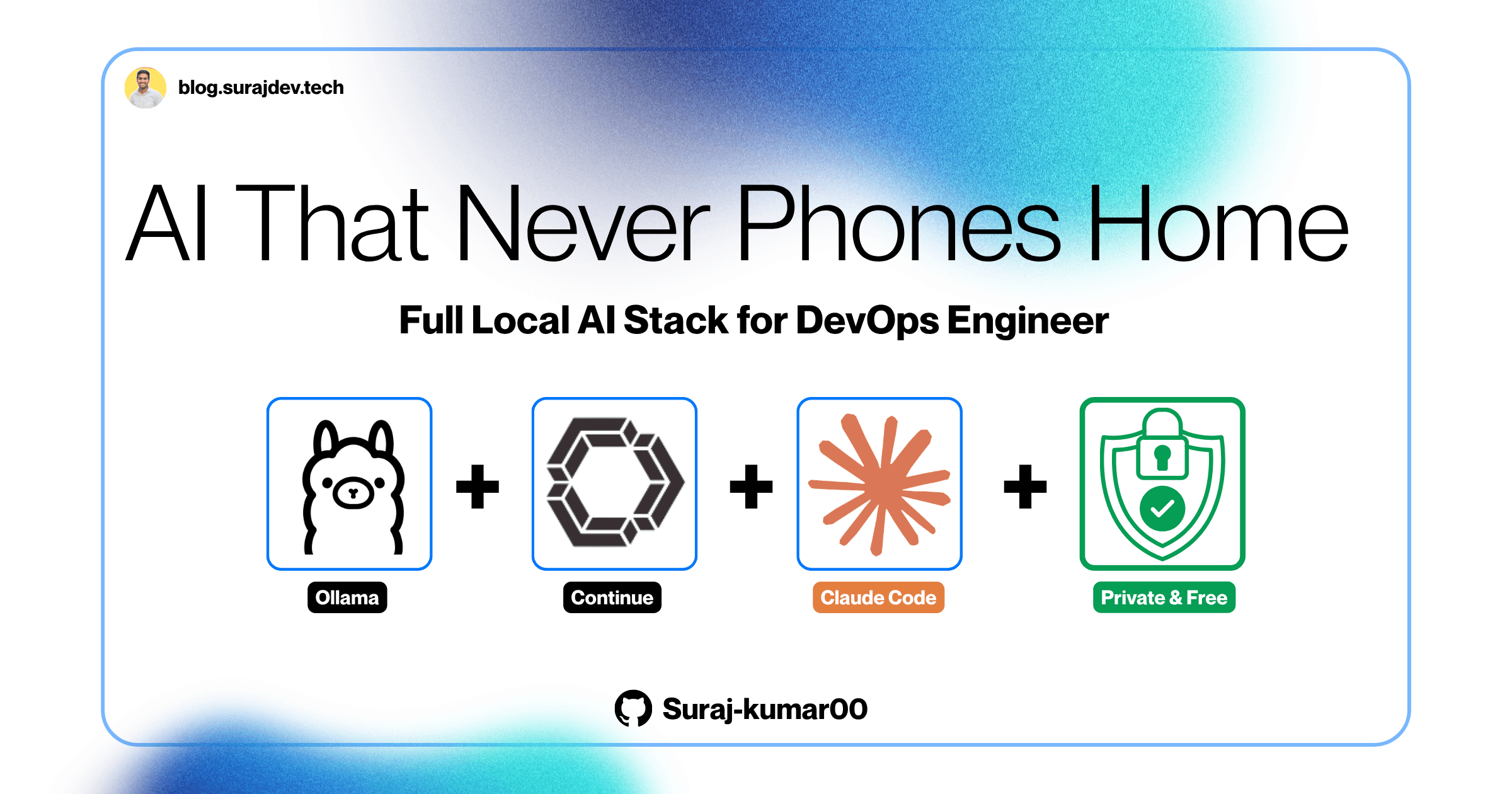
How I Run a Full AI Coding Stack Locally Zero Cost, Zero Cloud, Zero Compromise
A step-by-step guide to running Ollama, Gemma4, Continue, and Claude Code locally
Search for a command to run...
A step-by-step guide to running Ollama, Gemma4, Continue, and Claude Code locally
No comments yet. Be the first to comment.
What the program actually is, how the application works step by step, and what to do in your first 30 days after selection.
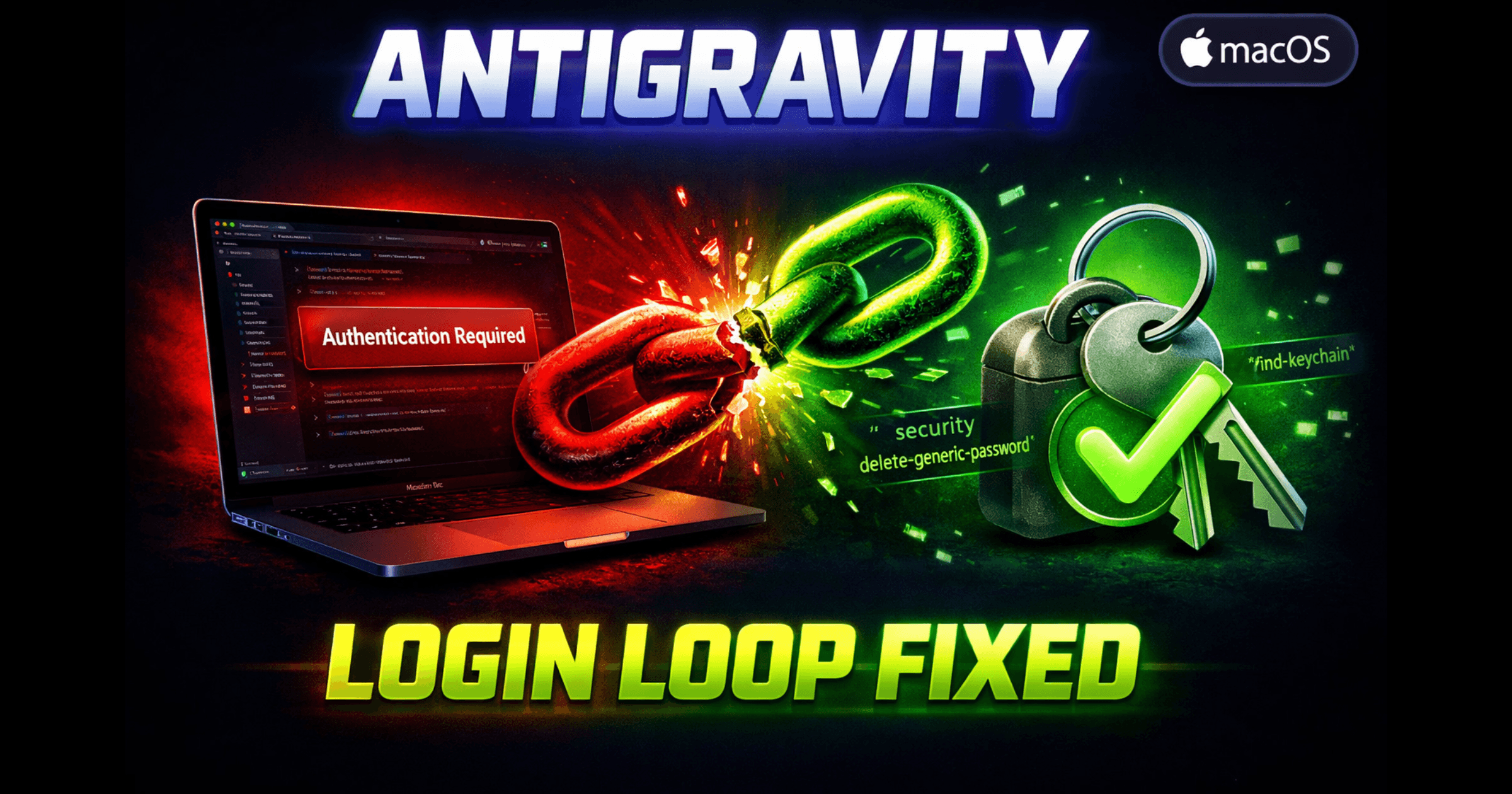
The Problem If you're reading this, you're probably stuck in the same nightmare I was: Antigravity shows "Authentication Required Please sign in" no matter what you do. You've reinstalled it. You've c
My First Major CNCF Open Source Contribution
Mastering Git Rebase: Fix Wrong Authors the Safe Way (Docker Lab + Real GitHub Practice)
This is not a "look what AI can do" post.
This is a documented, real-world setup guide written by a DevOps engineer who got tired of sending infrastructure code to cloud APIs he doesn't control. By the end of this post, you'll have a fully working local AI coding assistant running on your own machine, no API keys, no subscriptions, no data leaving your laptop.
Here's the exact stack I'm running:
Ollama — local model server (runs silently in your menu bar)
Gemma4 by Google — the actual AI brain, downloaded to my disk
Continue — VS Code extension that connects your editor to the local model
Claude Code CLI — Anthropic's agentic coding tool, redirected to run locally via Ollama
Total monthly cost: ₹0. Total data sent to cloud: 0 bytes.
Let's get into it.
It's 11 PM. You're debugging a Kubernetes issue that's blocked the release since morning. Your values.yaml has cluster configs. Your .env has database strings. Your Terraform files have internal VPC IDs and IAM role ARNs your security team wouldn't approve of sharing.
You're tired. You paste the config block into GitHub Copilot or ChatGPT.
It works. You ship the fix.
And somewhere between your keyboard and that suggestion, your infrastructure config traveled to servers you don't control, got processed by models you don't audit, and became part of a request log you'll never see.
This is not paranoia. This is how every cloud AI assistant works by design.
GitHub Copilot sends your surrounding code context to OpenAI's servers. Microsoft's policies allow training on your code unless you're on Enterprise with telemetry explicitly disabled, and even then, the data still travels a network path you don't own.
ChatGPT / Claude API process everything you paste on their infrastructure. Both have data retention policies. Free-tier usage is especially permissive about training data.
For a developer building a todo app, probably fine. For a DevOps engineer — different conversation.
The code I work with daily falls into categories most developers never touch:
IaC — Terraform files, Helm charts, Ansible playbooks with real environment values and internal resource identifiers
CI/CD pipelines — GitHub Actions workflows that are, essentially, a blueprint of your entire delivery process
Secrets — Even with Vault and sealed secrets in place, real values end up in files during debugging. Those files should never leave the machine.
Internal architecture — Service names, DNS patterns, DB schemas. Harmless individually. A detailed internal map collectively.
This isn't just a privacy preference. In most organisations it's a compliance violation, GDPR, SOC 2, ISO 27001 all have explicit data residency clauses. "I was using an AI assistant" won't hold up in a post-incident review.
Encryption in transit protects data between your laptop and their servers. It does nothing once it arrives. The threat isn't interception, it's that your code now exists on infrastructure you don't own, under a privacy policy you didn't negotiate, subject to regulations in jurisdictions you may not operate in.
The only real fix is to never send it in the first place.
I considered it. But the productivity benefit is real, boilerplate generation, config scaffolding, refactoring, documentation. I didn't want to lose that. I wanted the productivity without the data transfer.
Which led to the question I suspect many DevOps engineers have quietly asked: Can I run a capable LLM entirely on my own machine, and get a genuinely useful AI coding experience without a single byte leaving my laptop?
The answer; and this genuinely surprised me, is yes. Three things made it practical:
Apple Silicon unified memory eliminated the CPU/GPU split. On M1 Pro with 16GB, the GPU shares the full memory pool, making 7B models viable on the same MacBook you already use for work.
Quantization matured. A 7B model at Q4 quantization uses ~4–5GB RAM and produces quality that required much larger models two years ago.
Ollama simplified everything. What used to need manual CUDA setup and Python environment management is now brew install and ollama pull. Metal GPU acceleration on Apple Silicon is automatic.
These three together made everything you're about to read possible, on a MacBook Pro M1 Pro 16GB sitting on my desk.
I want to be transparent about the hardware this guide is written for, because model selection depends heavily on available RAM.
Machine:   MacBook Pro (2021)
Chip:      Apple M1 Pro
Memory:    16 GB unified memory
Storage:   512 GB (143 GB free when I started this setup)
OS:        macOS Tahoe 26.4
16GB is a real constraint. I'll be honest about where I hit walls, which models were too slow, and what actually works. If you have 32GB, you have more flexibility. I'll note those options too.
Before diving into installation, let me show you exactly how these tools connect. Understanding the architecture makes every configuration decision obvious rather than arbitrary.
This setup gives you two distinct ways to interact with local AI, depending on what you're trying to do:
Workflow A : Chat and inline editing inside VS Code (via Continue):

Workflow B : Agentic coding in the terminal (via Claude Code):

Both workflows. Zero cloud. Zero cost.
| Tool | Type | Role | Without it |
|---|---|---|---|
| Ollama | Background server | Serves models via HTTP API at localhost:11434 | Nothing works — it's the engine |
| Gemma4 / Qwen | Model files on disk | The actual AI doing the thinking | Ollama has no brain |
| Continue | VS Code extension | Chat panel + inline edit + tab autocomplete | No AI in your editor |
| Claude Code | Terminal CLI | Autonomous agent — reads/writes files, runs commands | No agentic coding |
Claude Code is Anthropic's CLI tool. It was designed to call Anthropic's cloud API. So how does it run locally?
Since Ollama v0.14.0, Ollama added native compatibility with the Anthropic Messages API format. This means you can point Claude Code at your local Ollama server using three environment variables, and it routes every request to your machine instead of Anthropic's servers. No API key required. No billing.
export ANTHROPIC_AUTH_TOKEN="ollama"   # Placeholder — not a real key
export ANTHROPIC_API_KEY=""            # Intentionally empty
export ANTHROPIC_BASE_URL="http://localhost:11434"  # Points to local Ollama
This is the most underrated part of this entire setup. You get Anthropic's powerful agentic CLI tool, one of the best coding agents available and running entirely on your own hardware.
This section will save you hours of frustration. I'm going to tell you exactly what I tried, what happened, and what I ended up settling on.
Your 16GB is shared across everything running on your Mac. Here's what's typically consumed before your model even loads:
macOS Tahoe baseline:        ~4-5 GB
VS Code with extensions:     ~1-2 GB
Terminal + other apps:       ~0.5-1 GB
Available for model:         ~8-10 GB (best case)
This means your practical model size limit on 16GB is roughly an 8B model. Anything larger will push your system into swap (using the SSD as overflow RAM), which is around 100x slower than actual RAM.
| Model | Size on Disk | RAM Used | Response to "hi" | Verdict |
|---|---|---|---|---|
qwen2.5-coder:1.5b |
986 MB | ~1.5 GB | < 1 second | Too basic for chat — autocomplete only |
gemma4:e4b (4B) |
9.6 GB | ~4 GB | 3–5 seconds | Sweet spot — use this |
qwen2.5-coder:7b |
4.7 GB | ~5 GB | 3–8 seconds | Excellent for coding tasks |
llama3.1:8b |
4.9 GB | ~5.5 GB | 5–10 seconds | Good for general writing |
qwen2.5-coder:14b |
9.0 GB | ~9 GB | 60–120 seconds | Too slow — hits swap badly |
gemma4:26b |
17 GB | ~10+ GB | Very slow | Needs 32GB to be usable |
My first instinct was to pull the biggest model that would technically fit. I downloaded qwen2.5-coder:14b (9GB) and launched it. It replied to "hi" after 78 seconds.
The problem wasn't just RAM, it was swap. When a model doesn't fit cleanly in your unified memory alongside your OS and apps, macOS starts using the SSD as overflow. NVMe SSDs are fast for storage but catastrophically slow for the random-access patterns that neural network inference requires. The result is a model that's technically running but practically unusable.
The fix was switching to qwen2.5-coder:7b and gemma4:e4b. Both fit comfortably in RAM, respond in seconds, and the quality difference for day-to-day coding tasks is smaller than you'd expect.
| Your RAM | Best model choice | Max practical model |
|---|---|---|
| 8 GB | qwen2.5-coder:7b (careful) |
7B with nothing else open |
| 16 GB | gemma4:e4b or qwen2.5-coder:7b |
8B comfortably |
| 32 GB | qwen2.5-coder:14b or gemma4:26b |
14–26B comfortably |
| 64 GB | qwen2.5-coder:32b or larger |
32B+ |
Google's Gemma4 in the efficient 4B variant (e4b) has become my go-to for a few reasons beyond just RAM usage:
Multimodal: it handles both text and images, so I can paste a screenshot of an error and ask it to diagnose the issue
128K context window: massive for a 4B model, handles entire config files without truncation
Strong instruction following: better at following structured prompts like "here is my Terraform file, identify the IAM permission issues" compared to similarly-sized alternatives
Fast on M1 Pro: consistent 3–5 second responses for typical coding queries
Everything from zero to working local AI stack. Follow these in order.
Open Terminal and run these first:
# Check macOS version (needs 13 Ventura or later)
sw_vers -productVersion
# Your output: 26.4 (Tahoe — fully compatible)

# Check if Homebrew is installed
brew --version
# If not found, install it:
/bin/bash -c "$(curl -fsSL https://raw.githubusercontent.com/Homebrew/install/HEAD/install.sh)"

# Check Node.js (needed for Claude Code — needs v18+)
node --version
# If not installed or below v18:
brew install node
# Install Ollama as a macOS app (cask version)
brew install --cask ollama

# Verify it's running:
ollama --version
curl http://localhost:11434
# Expected output: Ollama is running
Important: Do NOT run
ollama servemanually. The cask app already manages the server process. Running both causes a port conflict.
# Primary model — best all-rounder on 16GB (multimodal, 128K context)
ollama pull gemma4:e4b

# Coding specialist — fastest for pure code tasks
ollama pull qwen2.5-coder:7b

# Autocomplete model — tiny and instant, used for tab completion only
ollama pull qwen2.5-coder:1.5b

# Verify all models downloaded:
ollama list
Expected output after pulling:
NAME                    ID              SIZE      MODIFIED
gemma4:e4b              c6eb396dbd59    9.6 GB    2 minutes ago
qwen2.5-coder:7b        dae161e27b0e    4.7 GB    5 minutes ago
qwen2.5-coder:1.5b      d7372fd82851    986 MB    7 minutes ago
Quick smoke test to confirm a model responds:
ollama run qwen2.5-coder:7b "write a one-line python function to check if a port is open"
# Should respond in 3-8 seconds
# Type /bye to exit or control+C
# Install the VsCode if you haven't
brew install --cask visual-studio-code

# Verify the `code` CLI command works:
code --version
# Install via command line
code --install-extension Continue.continue
After install, you'll see the Continue icon in the left sidebar. Click it to open the chat panel.
Open the config file:
code ~/.continue/config.yaml
Replace the entire contents with this:
name: Local Config
version: 1.0.0
schema: v1

models:
  - name: Gemma 4 (4B) — Daily Driver
    provider: ollama
    model: gemma4:e4b
    apiBase: http://localhost:11434
    roles:
      - chat
      - edit
      - apply
    defaultCompletionOptions:
      temperature: 0.2
      contextLength: 32768
      maxTokens: 8192

  - name: Qwen 2.5 Coder 7B — Coding
    provider: ollama
    model: qwen2.5-coder:7b
    apiBase: http://localhost:11434
    roles:
      - chat
      - edit
      - apply
    defaultCompletionOptions:
      temperature: 0.1
      contextLength: 32768
      maxTokens: 8192

  - name: Qwen Autocomplete
    provider: ollama
    model: qwen2.5-coder:1.5b
    apiBase: http://localhost:11434
    roles:
      - autocomplete

context:
  - provider: codebase
  - provider: diff
  - provider: terminal
  - provider: folder
Save with Cmd+S, then reload VS Code: Cmd+Shift+P → "Developer: Reload Window".
contextLength: 32768 and not 8192? The default 8192 tokens is tiny; you'll hit the "Message exceeds context limit" error constantly when pasting code or having longer conversations. 32K is the practical sweet spot on 16GB: large enough for real work, small enough to stay fast.Open any code file in VS Code, then:
Test 1:
Chat: Press Cmd+L → ask "explain what a Kubernetes readiness probe does"

Test 2:
Autocomplete: Create a new .py file → type "def " → wait 1-2s → press Tab

Test 3:
Inline edit: Write a function → select it → Cmd+I → "add error handling"
If all three work, Continue is fully configured.
This is the section that surprised me most. Claude Code is Anthropic's terminal-based coding agent, it can autonomously read files, write code, run tests, and make changes across an entire project. It's genuinely one of the most capable coding agents available.
And since Ollama v0.14.0, you can run it entirely locally.
# Install via npm globally
npm install -g @anthropic-ai/claude-code

# Verify install
claude --version
# Expected: Claude Code v2.x.x

# Run the native installer (recommended by Anthropic):
claude install
# Expected output:
# ✓ Claude Code successfully installed!
# Version: 2.1.97
# Location: ~/.local/bin/claude
Add these three lines to your ~/.zshrc:
# Open your shell config
code ~/.zshrc

# Add at the bottom:
# ===== Ollama + Claude Code Local Setup =====
export ANTHROPIC_AUTH_TOKEN="ollama"
export ANTHROPIC_API_KEY=""
export ANTHROPIC_BASE_URL="http://localhost:11434"
# ============================================
Save and reload:
source ~/.zshrc

# Confirm the variables are set correctly:
echo $ANTHROPIC_BASE_URL
# Expected output: http://localhost:11434
If you previously logged into Claude Code via /login, you'll see this warning:
Fix it by logging out the managed key:
claude /logout
Now your environment variables are the only credentials, and everything routes to Ollama.
# Navigate into your project first — Claude Code works best inside a project
cd ~/your-project

# Method A — Clean new way (Ollama handles routing automatically):
ollama launch claude --model gemma4:e4b

# Method B — Manual way (uses your ~/.zshrc env vars):
claude --model gemma4:e4b
When Claude Code starts, test it with a real task:
create a GitHub Actions CI/CD pipeline for a Node.js app with lint, test, and Docker build stages
Watch it create the .github/workflows/ci.yml file autonomously, writing proper YAML with correct indentation and real workflow logic, all processed locally on your machine.
Read and understand your entire project structure
Create new files and directories
Edit existing files across multiple locations simultaneously
Run terminal commands and react to the output
Write tests and iterate based on test results
Refactor code across multiple files in a single operation
The quality with a 7B or 4B model is lower than Claude 3.5 Sonnet on Anthropic's servers, that's honest. But for well-defined tasks with clear instructions, it produces genuinely useful results without any network dependency.
For the DevOps engineers who want to understand every line before deploying it:
name: Local Config      # Display name in Continue UI
version: 1.0.0          # Config schema version
schema: v1              # Tells Continue which format to parse

models:
  - name: Gemma 4 (4B)  # What you see in the model dropdown
    provider: ollama    # Which backend to use (ollama, anthropic, openai, etc.)
    model: gemma4:e4b   # Must exactly match the name in `ollama list`
    apiBase: http://localhost:11434  # Where Ollama is listening

    roles:
      - chat            # Used in the sidebar chat panel (Cmd+L)
      - edit            # Used for inline edits (Cmd+I)
      - apply           # Used when applying suggested changes to files

    defaultCompletionOptions:
      temperature: 0.2  # Lower = more deterministic. 0.1 for code, 0.7 for creative
      contextLength: 32768  # How much text the model sees (tokens). 32K = ~24,000 words
      maxTokens: 8192   # Max length of model's response

# Autocomplete uses a separate, smaller, faster model
  - name: Qwen Autocomplete
    provider: ollama
    model: qwen2.5-coder:1.5b  # 1.5B model = near-instant tab completions
    roles:
      - autocomplete    # ONLY used for ghost-text tab completion, nothing else

context:
  - provider: codebase  # Lets model search your entire codebase for relevant context
  - provider: diff      # Includes current git diff as context
  - provider: terminal  # Includes recent terminal output as context
  - provider: folder    # Includes current folder structure as context
Cmd+L           → Open Continue chat sidebar
Cmd+I           → Inline edit (highlight code first)
Cmd+Shift+L     → Add selected code to chat as context
Tab             → Accept autocomplete ghost-text
Esc             → Dismiss autocomplete
After running this stack daily for several weeks, here's where I've landed.
Continue for daily coding assistance is genuinely good. Tab autocomplete with qwen2.5-coder:1.5b is near-instant and accurate for common patterns. Chat with gemma4:e4b handles most code review, explanation, and generation tasks competently. Inline editing with Cmd+I is my most-used feature.
Claude Code for agentic tasks works for well-defined, bounded tasks. "Create an Express REST API with these routes" produces correct results. "Refactor all files to use async/await" handles multi-file changes properly. Complex reasoning chains are where the gap with cloud models becomes most apparent.
The privacy guarantee is absolute. Every byte stays on your machine. This is verifiable, not a promise.
Local models at 7B–8B are meaningfully less capable than Claude Sonnet or GPT-4 for complex tasks. For ambiguous or multi-step reasoning problems, you'll notice the quality gap. This is a real tradeoff.
Response times are longer than cloud APIs — 3–10 seconds vs sub-1-second for cloud. For most coding tasks this is acceptable. For rapid back-and-forth conversation, it's sometimes frustrating.
| Use Case | Tool | Model |
|---|---|---|
| Tab autocomplete | Continue | qwen2.5-coder:1.5b |
| Chat + code explanation | Continue | gemma4:e4b |
| Inline code edits | Continue | qwen2.5-coder:7b |
| Create new files / project scaffolding | Claude Code | gemma4:e4b |
| Sensitive infra configs | Any local tool | Any local model |
| Complex reasoning tasks | Cloud API | Claude Sonnet / GPT-4 |
I'll be honest: for genuinely complex tasks, debugging subtle distributed systems issues, designing architecture from scratch, understanding unfamiliar codebases quickly, cloud models are still significantly better. The local setup doesn't replace cloud AI entirely. It replaces it for the 80% of tasks that are straightforward enough that a 7B model handles them well, while keeping your sensitive infrastructure code off external servers.
The local AI coding stack I've described here; Ollama, Gemma4, Continue, and Claude Code represents a genuinely viable alternative to cloud-based AI assistants for DevOps engineers who take data privacy seriously.
It took some trial and error to get right. The 14B model disaster, the Cline incompatibility, the context limit errors none of that is in the polished tutorials. I've included it here because real setups have rough edges, and knowing where the edges are saves you time.
The setup that works is simpler than most people expect:
brew install --cask ollama
ollama pull gemma4:e4b
ollama pull qwen2.5-coder:7b
ollama pull qwen2.5-coder:1.5b
code --install-extension Continue.continue
# Configure ~/.continue/config.yaml
# Configure ~/.zshrc with Ollama env vars
npm install -g @anthropic-ai/claude-code
claude install
That's it. Your infrastructure configs stay on your machine. Your CI/CD pipelines stay on your machine. Your debugging sessions with sensitive environment variables stay on your machine.
For a DevOps engineer, that's not a small thing.
Found this useful? Share it with your team, especially the people who paste Kubernetes configs into ChatGPT without thinking about it.
Have questions or a different setup that works better? Drop it in the comments, I read everything.